Bootstrap Grid System Explained Simply
Master the 12-column grid layout, responsive breakpoints, and flexible column arrangements that power Bootstrap websites.
What’s the Bootstrap Grid?
Bootstrap’s grid system is built on a 12-column layout. It’s like having invisible columns on your page that help you arrange content in a structured way. The grid automatically adjusts based on screen size — your design works on phones, tablets, and desktops without you needing to rewrite everything.
Here’s the thing: you don’t have to use all 12 columns. You can use 6 columns for two equal boxes, or 4 columns for three equal boxes. You can even mix it — 8 columns for main content, 4 columns for a sidebar. The flexibility is what makes Bootstrap so practical for real projects.

The Core Structure: Containers, Rows, and Columns
Every Bootstrap grid starts with three layers. The container holds everything — it’s the outer wrapper that controls the maximum width. Inside that, you’ve got rows. Each row contains the actual columns where your content lives.
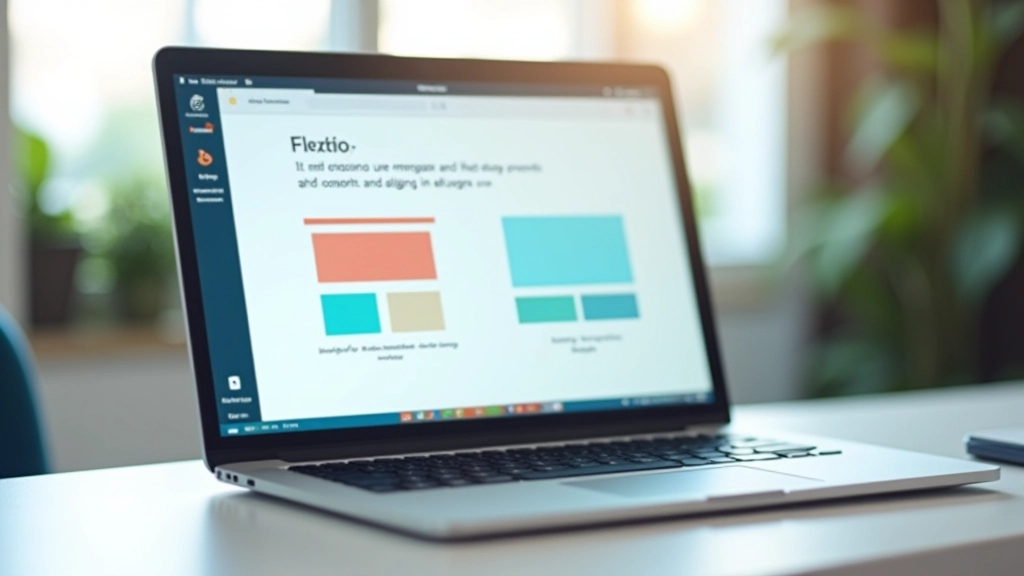
Think of it this way: container is the foundation. Rows are the horizontal sections. Columns are the vertical divisions within each row. When you add a column that uses 6 out of 12 units, it takes up exactly half the row’s width. Add another 6-column div next to it, and you’ve got two equal boxes side by side.
On mobile screens (under 576px), Bootstrap automatically stacks columns vertically. On tablets and larger screens, they display side by side. You’re not writing different layouts — Bootstrap handles the breakpoints for you.

Breakpoints: Making Your Layout Responsive
Bootstrap has built-in breakpoints for different screen sizes. You don’t manually write media queries for every design change — Bootstrap does the heavy lifting. The main breakpoints are extra small (mobile), small (576px+), medium (768px+), large (992px+), and extra large (1200px+).
Here’s what’s practical: use `col-12` for mobile to stack everything vertically. Then add `col-md-6` to make items 50% width on tablets. Add `col-lg-4` to make them 33% on desktops. One element, three different widths across devices. That’s the power of responsive grid classes.
Don’t overthink it. Start with what your content needs on mobile, then enhance for larger screens. Most sites work well with just two or three breakpoints instead of trying to optimize for every possible screen size.

Common Grid Patterns You’ll Actually Use
Most websites use just a few grid patterns. A simple two-column layout for blog posts — 8 columns for the article, 4 for the sidebar. That’s `col-lg-8` and `col-lg-4`. Three equal columns for features? That’s `col-md-4` on each. A hero banner taking the full width? That’s `col-12`.
Gutters — the space between columns — come built in. Bootstrap adds padding to columns automatically, so your content doesn’t touch. You can adjust gutter size if needed, but the defaults work fine for most projects. You’re not fighting spacing issues like you would with custom CSS.
Quick pattern reference: Two columns (8+4), three equal columns (4+4+4), full-width section (12), alternating layouts (left/right switching)

Tips for Working with Bootstrap Grid Effectively
Mobile-First Approach
Start with mobile layouts. Use `col-12` for single-column mobile, then add responsive classes for larger screens. It’s easier than removing complexity.
Nesting Grids
You can put a new row inside a column. This creates sub-grids within larger sections. Useful for complex layouts without breaking the grid structure.
Offset and Ordering
Use offsets to push columns, or reorder them on different screens. `offset-md-2` shifts a column 2 units right on tablets and up.
Alignment Classes
Bootstrap includes justify-content, align-items, and flex utilities. These align content within columns without needing custom CSS.
Gutters Control
Use `g-0` to remove gutters completely, or `g-4`, `g-5` to adjust spacing. It’s a quick way to tighten or loosen your layout.
Keep It Simple
Don’t overengineer. Most websites work fine with basic column combinations. Avoid deeply nested grids unless absolutely necessary.
Getting Started With Your First Grid
The Bootstrap grid isn’t complicated once you understand the basics. You’ve got containers, rows, and columns. You add responsive classes to change layout on different screens. That’s genuinely it.
Start building. Create a simple two-column layout. Make it responsive. Then gradually explore nested grids, offsets, and alignment utilities. You’ll discover patterns that work for your projects.
The grid system is designed to save you time. You’re not fighting CSS or worrying about media queries. Bootstrap handles that. Focus on your content and let the grid structure support it.

Important Note
This guide covers Bootstrap grid fundamentals as of 2026. Bootstrap continues to evolve. Always check the official Bootstrap documentation for the latest features and best practices. The grid system remains consistent across versions, but new utilities and options are regularly added. For production projects, verify your Bootstrap version and its specific grid capabilities.
Related Articles